Google Account & Apple ID Security — Settings, Recovery & Best Practices
A practical guide to securing the two accounts that often control your email, photos, devices, passwords, purchases, backups, and recovery options. It also explains how to reduce the wider personal-data trail connected to those accounts.
Start with the built-in security controls. Use a passkey or strong unique password, turn on two-factor authentication, keep more than one verified recovery method, review active devices, and remove third-party access you no longer use. Google calls its central page Security & sign-in; Apple now uses the name Apple Account, though many people still search for Apple ID.
Folder Lock can protect locally stored recovery records, exported files, private documents, and encrypted backups. It cannot secure or recover a Google or Apple account by itself.
Three recovery questions, answered directly
These answers avoid unofficial phone numbers, bypass tools, and risky shortcuts. Use only provider-controlled recovery pages and devices you own.
Choose the option that says you cannot use the listed number, then start Apple Account recovery. Verification may take several days or longer. Apple Support cannot manually accelerate the automated waiting period.
See the safe recovery steps →There is no universal Google recovery phone number. It is the personal number you add to your own account for verification and security alerts. Do not call numbers found in ads or unofficial support pages.
Review Google recovery options →On iPhone or iPad, open Settings and tap your name. On Mac, open System Settings and select your name. On the web, use Apple’s official account site. The section you need is usually Sign-In & Security.
Open the platform guide →Security, recovery, privacy, and file protection
What Is Google Account & Apple ID Security Hub?
One security plan for your identity accounts and the data around them
Google Account and Apple Account security means controlling who can sign in, which devices remain trusted, how your identity is recovered, which apps can reach your data, and what happens to sensitive files after you download or export them.
A complete plan combines account security, which blocks unauthorized access; data privacy, which limits collection and sharing; and local data protection, which protects copies stored on your computer, phone, external drive, or cloud-sync folder.
Different goals are often confused
Security prevents unauthorized access. Privacy controls how information is collected and used. Anonymity reduces how easily activity can be connected to your identity. A VPN may help with network privacy, for example, but it does not repair weak recovery settings or stop someone who already controls your email.
Google Account Security Settings Across Windows, Mac, Android & iOS
The same account protections exist across platforms, but the quickest route to them changes by device. Menu names can vary slightly after operating-system updates.
| Platform | Google Account path | Apple Account path | Best first checks |
|---|---|---|---|
| Windows | Open a browser, sign in at your Google Account, then choose Security & sign-in. | Use Apple’s official account website. iCloud for Windows handles some service settings, but account security is managed on the web. | PasskeysDevicesRecovery |
| Mac | Use the browser-based Google Account page, or Chrome profile settings for passwords and passkeys. | System Settings → your name → Sign-In & Security. | Trusted numbersRecovery contact |
| Android | Settings → Google → Manage your Google Account → Security & sign-in. | Use Apple’s account website or the Apple Support app when following an official recovery flow. | Screen lockGoogle promptBackup codes |
| iPhone and iPad | Open a Google app, tap your profile photo, choose Manage your Google Account, then Security & sign-in. | Settings → your name → Sign-In & Security. | 2FATrusted devicesRecovery key |
Google Account Security, Apple ID Security & Local Data Protection Methods
Use the native account method first. Add dedicated file protection only for sensitive copies that leave Google or Apple’s controlled environment.
Method 1: Strengthen Google Account Security With Built-In Controls
Google’s native security controls protect Gmail, Drive, Photos, saved passwords, YouTube, Android backups, and any service that uses your Google sign-in. This is the only layer that can directly control account access.
- Run Security Checkup. Review recent security events, signed-in devices, recovery information, third-party connections, and recommendations.
- Add a passkey or phishing-resistant second factor. A passkey or FIDO security key is harder to trick out of you than a one-time code.
- Keep two recovery paths. Use a current recovery phone plus a separate recovery email that has its own strong security.
- Save backup codes offline. Store them somewhere unavailable to anyone who gains access to your Google Drive.
- Remove unknown devices and app access. Sign out sessions you do not recognize and revoke old OAuth connections.
- Check Google Password Manager. Replace reused, weak, or compromised passwords and review passkeys you no longer need.
How to get a security code for your Google Account
Use a code only through a sign-in screen you opened yourself. Depending on what you configured, Google may offer a prompt on a signed-in device, an authenticator code, a backup code, a text or call, or a physical security key. Never read a code to someone who contacts you.
- Directly protects the account
- Free and built in
- Works across services and devices
- Recovery still depends on accurate information
- Cloud sharing mistakes remain possible
- Does not encrypt downloaded local copies automatically
Google Password Reset and Account Recovery
If you forgot your Google password, use Google’s official recovery flow. Google does not publish a universal recovery phone number, and legitimate support will not ask you to install remote-access software or pay to receive a verification code.
- Open Google Account Recovery from a device, browser, and location you have used before.
- Enter the account email or phone number and answer each prompt as accurately as possible.
- Choose “Try another way” when a recovery option is unavailable.
- Use a previously configured method such as a Google prompt, recovery email, recovery phone, backup code, passkey, authenticator, or security key.
- After access is restored, change the password, review devices and app connections, and replace recovery details that may be compromised.
Method 1: Secure Apple ID Account Settings With Apple’s Built-In Controls
Apple now calls Apple ID an Apple Account, but the same email address or phone number still signs you in. The account controls iCloud, device activation, Find My, purchases, backups, passwords, photos, messages, and trusted-device approvals.
- Review Sign-In & Security. Confirm the primary sign-in address, trusted phone numbers, and two-factor authentication.
- Add more than one trusted number. Use numbers you genuinely control and keep them current before changing carriers.
- Add an account recovery contact. Choose someone you trust who can help generate a recovery code but cannot access your account.
- Consider a recovery key carefully. It can improve control, but losing it while also losing trusted-device access can permanently block recovery.
- Review devices. Remove hardware you sold, lost, or no longer use after confirming it is not needed for recovery.
- Protect your device passcode. A stolen unlocked iPhone can expose account settings, saved passwords, and recovery actions.
How to find an Apple ID password in Settings
Apple does not display your Apple Account password in Settings. You can change it after authenticating with your device passcode or another approved method. Saved website and app passwords are managed separately in the Passwords app or password settings.
- Integrated with trusted hardware
- Strong two-factor verification
- Recovery contacts add resilience
- Device passcode compromise can be serious
- Recovery can take days
- A recovery key shifts more responsibility to you
Apple ID Account Recovery Without a Trusted Phone Number
When you cannot use any trusted phone number, choose the option indicating that you cannot use the listed number and begin Apple Account recovery. You may still be asked to enter the trusted number to identify the account, even when you cannot receive a code on it.
- Try a trusted iPhone, iPad, or Mac where you are already signed in.
- If no trusted device is available, use Apple’s official password-reset or account-recovery page.
- Choose the option that says you cannot access your trusted devices or phone number.
- Provide a reachable number for status updates if requested.
- Follow Apple’s instructions and avoid using the account on other devices during the waiting period if Apple warns that activity could cancel recovery.
- After recovery, update trusted numbers and add a recovery contact before another emergency occurs.
How to reset Apple ID without a recovery key
If you enabled a recovery key, Apple may require it for recovery depending on your setup. Check whether you still have a trusted device or recovery contact. Apple cannot replace a lost recovery key simply because you know the email address.
Method 2: Dedicated Software for Sensitive Local Files
Account providers protect data while it remains inside their services. Once you export Google Takeout data, download Drive documents, save recovery codes, scan identity documents, or copy iCloud files to a PC, those local copies need their own protection.
Folder Lock creates encrypted lockers for sensitive files and can also lock or hide files and folders. The stronger choice for theft protection is encryption, not hiding alone. It is most useful for local archives, private documents, exported account data, and encrypted files placed inside a cloud-sync folder.
- Install Folder Lock from the official NewSoftwares page.
- Create an encrypted locker and set a unique master password.
- Move recovery-code PDFs, account-export archives, private documents, and identity scans into the locker.
- Lock the locker before leaving the device or allowing another person to use it.
- Keep a separate, tested backup and store the master password safely.
- Windows and Mac local archives
- Sensitive files synced through cloud folders
- Recovery records stored outside the account
- Google or Apple two-factor authentication
- Official account recovery
- Correct Drive or iCloud sharing permissions
Method 3: Mobile Vault Apps on Android and iOS
A mobile vault can separate private copies of documents, photos, notes, or recovery records from the normal gallery and file browser. Use it only after securing the phone itself with a strong device passcode and current operating-system updates.
On Android, app-locking features can protect selected apps, but behavior after restart depends on the operating system and app permissions. On iPhone and iPad, iOS limits how third-party apps can lock other apps, so vault-style storage is generally more reliable than expecting one app to control the whole device.
- Convenient for private mobile files
- Biometric access can reduce shoulder surfing
- Separates vault content from ordinary apps
- Platform restrictions differ
- Cloud backup settings must be checked
- A compromised device passcode may weaken the setup
Audit Your Google Account & Apple ID Security Hub Setup
Use these tools as a planning aid. They do not inspect your accounts or upload any answers. Everything runs locally in your browser.
Choose what you need to do
Start with platform paths, then complete the security checklist.
Go to common errors and safe fixes. Do not remove protection until you understand why sign-in failed.
Use the methods matrix to compare native settings, security keys, vault apps, and encrypted lockers.
Use Google recovery or Apple recovery. Avoid third-party “unlock” services.
Personal data risk score calculator
Select every statement that applies.
Privacy settings audit checklist
0 of 10 completed
Which protection method fits your situation?
What are you trying to protect?
Privacy tool recommendation quiz
Timeline: how a data breach unfolds
Choose a stage to see what changes and what you should do.
Use Folder Lock after you secure the account itself
Google and Apple controls protect the identity account. Folder Lock addresses a different problem: what happens after recovery codes, account exports, identity scans, financial records, or private media are saved as files on a device.
We recommend it when those copies need encryption at rest, protected cloud synchronization, or controlled storage on removable media. The Windows edition offers the widest set of local controls, while the Mac and mobile editions focus more heavily on encrypted lockers, private records, and device-to-device access.
It is not a substitute for passkeys, two-factor authentication, trusted recovery contacts, or official account recovery. It also cannot reverse an unsafe Google Drive link or an exposed iCloud share.

Folder Lock Features in a Personal Account-Security Plan
These capabilities protect files connected to your online identity. They do not control the Google Account or Apple Account itself.
Encrypted lockers for account exports
Place Google Takeout archives, downloaded iCloud data, identity scans, recovery instructions, and backup-code copies in an encrypted workspace rather than an ordinary folder.
Use with: a tested backup
Separate lockers for local and cloud storage
The desktop editions can maintain a local locker and encrypted locker locations connected to Google Drive, Dropbox, or OneDrive. The cloud provider moves the protected files, while Folder Lock handles the encryption layer.
Check: restore behavior
Cross-device access and controlled sharing
Linked Windows, Mac, Android, and iOS apps can open supported encrypted data under the same Folder Lock account. The paid desktop tier also adds sharing for selected users.
Limit: device allowance by plan
Windows locking, hiding, and portable lockers
On Windows, the full edition adds local folder protection and portable encrypted containers for external storage. Hiding or blocking access is useful against another local user, while encryption is the safer choice for theft or drive loss.
Not: a FIDO security key
Private notes, passwords, and wallet records
Dedicated areas for notes and structured personal records can reduce the temptation to leave recovery details in email drafts, screenshots, browser notes, or unprotected documents.
Avoid: a single point of failure
Mobile vault tools that differ by platform
Both mobile apps cover private media, documents, audio, notes, wallet records, cloud backup, access-attempt monitoring, and a private browser. Android also lists app locking, while iOS lists local Wi-Fi file transfer.
Remember: not account recovery
Secure deletion and local privacy cleanup
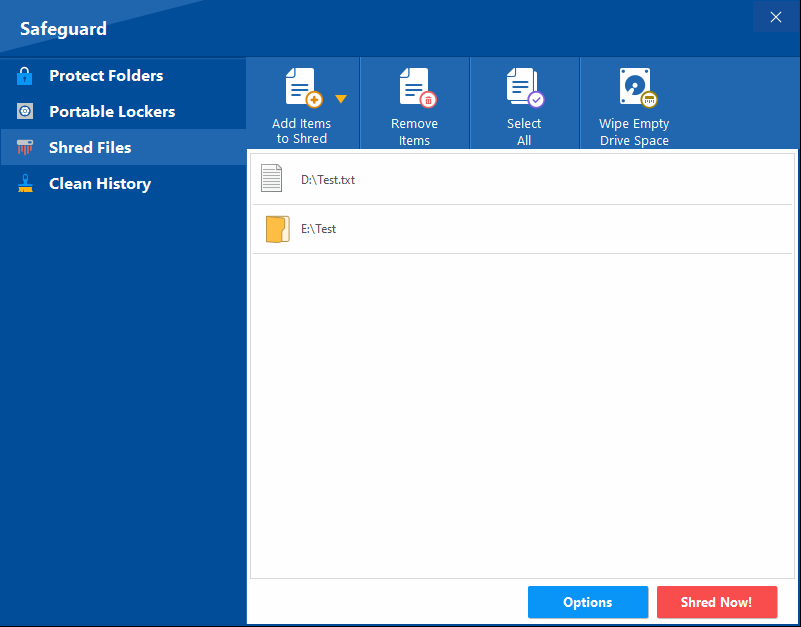
The Windows product includes tools for removing selected files and clearing certain local activity traces. These actions do not delete copies that still exist in cloud storage, backups, shared folders, or another device.
Verify: every duplicate location
Folder Lock on Windows, Mac, Android and iOS

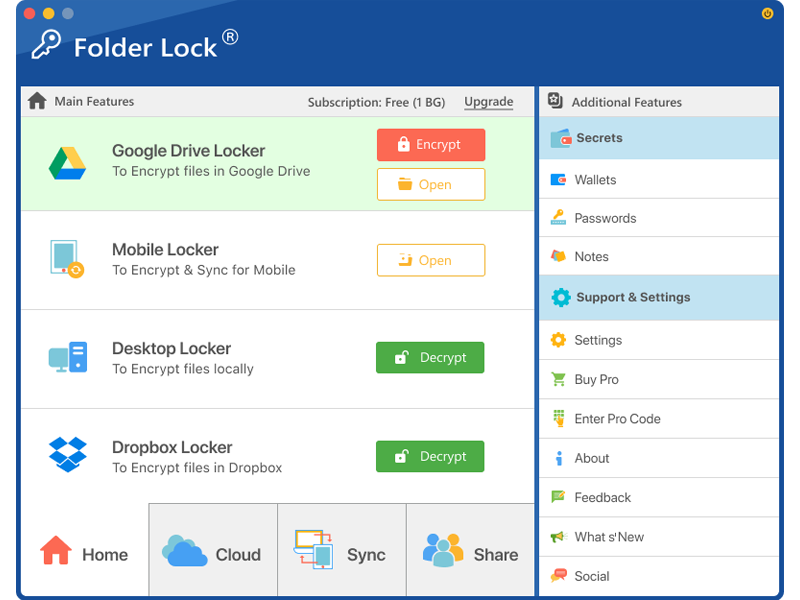
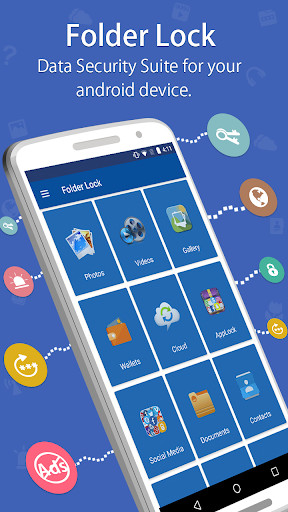
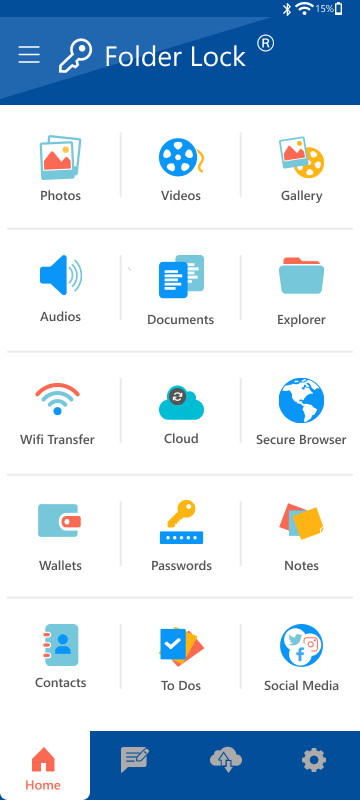
The product family uses a common encrypted-storage model, but each operating system exposes different controls. Choose the edition by the device where the sensitive files actually live.
| Platform | Useful capabilities for this guide | Important boundary | Best fit |
|---|---|---|---|
| Windows 10 and 11 | Local and cloud lockers, linked-device sync, selected-user sharing, protected folders, portable lockers, private records, file removal, and local-history cleanup. | The strongest Windows-only controls are in the paid edition. File protection still does not secure a Google or Apple sign-in. | Account exportsShared PCUSB backup |
| macOS 13 or later | A local desktop locker plus encrypted locations tied to Dropbox, OneDrive, and Google Drive, along with cross-device synchronization, sharing, and private notes or wallet records. | The published Mac feature set does not include the Windows Safeguard module, so do not assume Windows locking, portable-locker, shredding, or cleanup tools are present. | Encrypted Mac filesCloud lockers |
| Android | Private media and documents, encrypted notes and wallet records, cloud backup, access-attempt logs, app locking, private browsing, and cross-platform file access. | App locking protects supported apps on the phone. It does not add a passkey, reset a Google password, or replace Android device security. | Private appsPhone vault |
| iPhone and iPad | Private media and documents, notes and wallet records, cloud backup, access-attempt monitoring, a private browser, Wi-Fi transfer, and cross-platform file access. | The iOS feature list differs from Android and does not provide Apple Account recovery or change trusted-device settings. | Private iOS filesWi-Fi transfer |
Folder Lock Free vs Pro: Which Version Fits This Security Plan?
The free edition is suitable for testing the workflow or protecting a small set of recovery records. Pro is the practical option when the archive grows, more devices need access, or Windows-specific protection tools are required.
| Area | Free edition | Pro edition | Why it matters here |
|---|---|---|---|
| Locker capacity | 1 GB in the reviewed comparison | Listed without a capacity ceiling | A few recovery documents fit easily; full account exports and media archives can grow much larger. |
| Synced devices | Up to 2 | Up to 5 | Count every computer, phone, or tablet that needs the encrypted material. |
| Desktop sharing | Not included in the Windows and Mac comparisons | Included for authorized users | Useful for a household emergency plan or a controlled business handoff, provided access is reviewed regularly. |
| Windows extras | No portable lockers or protected-folder module | Adds both features | Choose Pro when the use case includes external drives or local access control on a shared Windows computer. |
| Mac private records | The comparison excludes Secrets | Includes the private-record area | This matters when notes, passwords, or structured wallet details are part of the plan. |
| Published price | $0 | $39.95 at the time of review | Confirm the current total, license term, taxes, and platform entitlement before purchasing. |
When the free edition is enough
Use it to test locker creation, protect a small offline recovery folder, and confirm that the files open correctly on one or two personal devices.
When Pro is the better fit
Consider the paid edition for large exports, five-device access, controlled sharing, Windows portable lockers, or folder-level protection on a shared PC.
Which Security Method Protects Which Risk?
| Method | Difficulty | Security | Cost | Best for | Main limitation |
|---|---|---|---|---|---|
| Google built-in security | Easy | High | Free | Google account access | Does not encrypt downloads |
| Apple built-in security | Easy | High | Free | Apple devices and iCloud | Recovery may be delayed |
| Passkey or USB security key | Moderate | Very high | Free to paid | Phishing resistance | Needs backup planning |
| Google Drive restricted sharing | Easy | Medium | Free | Cloud collaboration | Not a document password |
| Folder Lock encrypted locker | Moderate | High | Free and paid | Downloaded and synced private files | Plan and platform differences |
| Folder Lock mobile vault | Easy | Medium to high | Free and paid | Private phone files and records | Does not control Google or Apple accounts |
| USB Secure | Moderate | High | Paid | Portable storage | Not an account authentication key |
| Our verdict | Use native Google or Apple controls for the account, a passkey or physical security key for stronger sign-in, and encrypted storage for sensitive files that leave the provider. | ||||
How to Protect Account Recovery Records Using Folder Lock
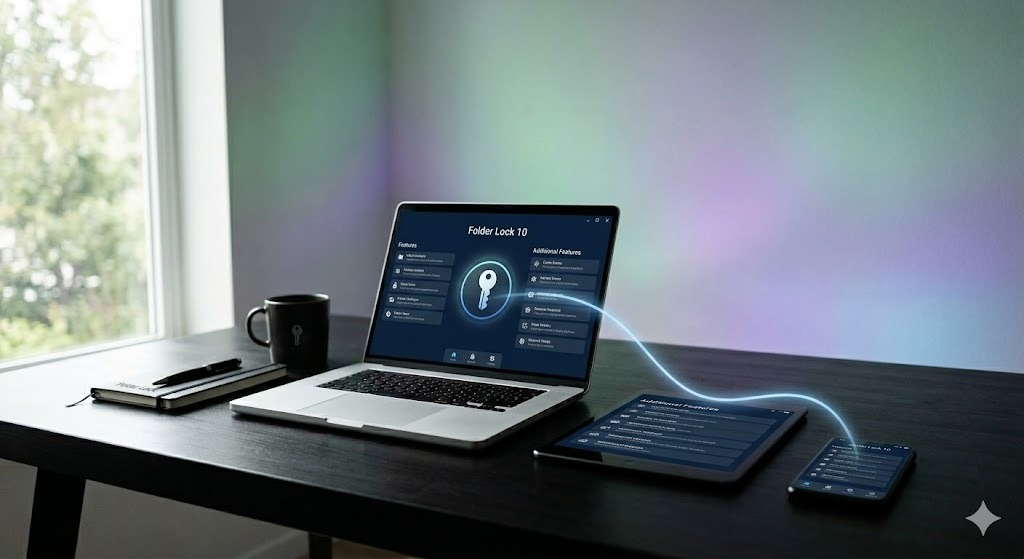
This workflow is for material you own, including backup-code printouts, recovery plans, account-export archives, identity scans, purchase records, and emergency instructions.
- Install the correct official edition. Choose Windows, Mac, Android, or iOS from the developer's product page or the appropriate official app store. Avoid repackaged installers.
- Decide between a local locker and a cloud locker. A desktop locker stays on the computer. A Google Drive, Dropbox, or OneDrive locker is designed for encrypted synchronization through that provider.
- Create a password used nowhere else. The locker password should not match the Google Account password, Apple Account password, device PIN, or primary email password.
- Add recovery records without creating a trap. Store copies of backup codes, identity documents, support receipts, and written recovery instructions. Keep a separate way to recover the locker password.
- Close the locker and test access. Confirm the protected files are no longer available as ordinary documents, then reopen the locker and check several files for integrity.
- Test synchronization on a second device when used. Allow the cloud provider to finish syncing, open the matching Folder Lock app, and confirm the encrypted records can be reached without creating an unprotected duplicate.
- Maintain another independent backup. Keep a separately encrypted copy in a different location. Review both copies after changing passwords, replacing devices, or updating the recovery plan.
Which Recovery Method Is Most Vulnerable to Social Engineering?
Relative exposure by method
This is a practical risk model, not a guarantee. The actual risk depends on your carrier, device security, recovery-email protection, and how much personal information an attacker can collect.
Reduce the weak links
- Put a separate PIN and port-out lock on your mobile carrier account.
- Secure the recovery email with its own passkey or two-factor authentication.
- Keep at least two recovery methods so one lost phone does not become an emergency.
- Do not approve unexpected sign-in prompts, even when the caller claims to be support.
- Do not post old phone numbers, birth dates, addresses, or family details that make verification easier to impersonate.
- Review recovery information after a breach, device theft, phone-number change, or relationship change.
How Data Brokers Collect and Sell Your Personal Data
Data brokers assemble profiles from public records, app activity, website tracking, purchase histories, loyalty programs, property records, location signals, marketing lists, surveys, and data shared by other companies. A single profile may connect your name, current and previous addresses, phone numbers, relatives, interests, likely income, device identifiers, and inferred behavior.
Not every broker sells a searchable people profile. Some build advertising audiences, fraud scores, identity-resolution graphs, or market segments. The practical privacy risk is that separate fragments become easier to connect, which can improve phishing, impersonation, stalking, account-recovery fraud, or targeted scams.
How monetization works
- Collect: obtain data directly, purchase it, observe it, or infer it.
- Match: connect identifiers such as email, phone, device ID, address, or browser signals.
- Enrich: add demographic, behavioral, financial, household, or interest categories.
- Package: sell access, scores, lists, audience segments, or identity verification services.
- Refresh: update profiles as new records and signals appear.
The Most Common Ways Personal Data Gets Compromised
- Reused passwords exposed in an unrelated breach
- Phishing pages that imitate Google, Apple, banks, or mobile carriers
- OAuth apps granted broad access to email, files, or contacts
- Public cloud links and incorrectly shared folders
- Lost devices, unlocked phones, and unencrypted local exports
- SIM swaps, number recycling, and weak carrier-account verification
- Malicious browser extensions and sideloaded mobile apps
- People-search sites that expose addresses, relatives, and phone numbers
GDPR and CCPA — Your Rights Explained Simply
| Right | GDPR-style explanation | California CCPA/CPRA-style explanation | Practical request |
|---|---|---|---|
| Know or access | Ask what personal data is processed and receive a copy, subject to legal limits. | Ask for categories and specific pieces of personal information collected, used, disclosed, sold, or shared. | “Please provide the personal information associated with this email and phone number.” |
| Delete | Request erasure when a valid legal ground applies, with exceptions. | Request deletion of collected personal information, with statutory exceptions. | “Please delete my profile and data not required for legal or security purposes.” |
| Correct | Correct inaccurate personal data. | Request correction of inaccurate personal information. | “This address and phone number are inaccurate. Please correct or remove them.” |
| Object or opt out | Object to certain processing, including some direct marketing. | Opt out of sale or sharing and limit certain uses of sensitive personal information. | Use “Do Not Sell or Share My Personal Information” and global privacy controls where supported. |
| Portability | Receive certain data in a structured, commonly used, machine-readable form. | Access rights may support obtaining usable copies, depending on the request and business. | Export your account data before closing an account. |
| No retaliation | Rights must be honored under applicable law without unlawful disadvantage. | Businesses generally cannot discriminate because you exercised CCPA rights. | Keep request confirmations and document any adverse response. |
Authoritative starting points: European Commission guidance for individuals and the California Attorney General’s CCPA overview.
Tools to Remove Your Data From the Internet
No service can guarantee removal from the entire internet. The useful goal is to reduce high-risk exposure, remove unnecessary listings, close old accounts, and make future collection harder.
Free manual removal
Search your name, phone numbers, email addresses, usernames, and old addresses. Submit opt-outs directly to people-search sites, close unused accounts, remove old posts, and request search-result removal where a provider offers it.
Best for: people who can spend several hours initially and repeat checks every few months.
Provider privacy dashboards
Use Google’s privacy controls, Results about you, ad settings, activity controls, location history controls, and account-data export. Use Apple privacy settings, app tracking controls, location permissions, and the Apple data and privacy portal.
Best for: reducing collection inside accounts you already use.
Paid removal services
Commercial services can submit and repeat opt-out requests across covered broker lists. Compare which brokers are covered, how often rescans occur, whether custom requests are supported, and what personal information the service itself requires.
Best for: people with many listings or limited time. Limitation: coverage is never complete.
Breach and credential monitoring
Use a reputable breach-notification service, password-manager alerts, and provider security warnings. Treat a breach notice as a signal to change reused credentials and review recovery methods, not proof that every account was accessed.
Best for: early warning and password cleanup.
How to Do a Personal Data Audit
- List important identities: personal email, work email, phone numbers, addresses, usernames, and family connections.
- Search each identifier in quotation marks and review images, people-search results, old profiles, documents, and cached snippets.
- Inventory high-value accounts and note their password, two-factor, recovery, device, and app-access status.
- Export data before deleting accounts you may need for records.
- Submit removal or correction requests and record the date, confirmation, and promised response time.
- Repeat quarterly for high-risk people or twice a year for most users.
How to Use Privacy-Focused Browsers and Search Engines

A privacy-focused browser can reduce third-party tracking, fingerprinting, cross-site cookies, and risky extensions. A privacy-focused search engine can reduce search profiling. Neither makes you anonymous when you sign in to Google, Apple, social media, or another identifiable account.
Browser choices
- Firefox: strong tracking-protection controls and extensive configuration. Keep extensions limited and updated.
- Brave: aggressive tracker blocking by default with Chromium compatibility. Review optional rewards and service settings according to your preferences.
- Safari: useful built-in privacy protections for Apple users and tight platform integration.
- Tor Browser: designed for stronger anonymity against web tracking, but slower and not ideal for signing into identity-linked personal accounts.
Search choices
- DuckDuckGo: a simple privacy-oriented default for everyday searches.
- Startpage: privacy-oriented search results with a different sourcing model.
- Brave Search: independent-index options and privacy-oriented defaults.
Privacy Habits That Actually Make a Difference
- Use separate browser profiles for work, personal accounts, and research.
- Remove extensions you do not actively need.
- Block third-party cookies where practical and clear old site permissions.
- Use a password manager and passkeys instead of memorized reused passwords.
- Sign out of identity accounts before searches you do not want tied to the account.
- Do not upload private files to unknown “free” conversion, unlocking, or recovery sites.
Building a Personal Data Security Plan
- Identify what would hurt most. Prioritize primary email, phone number, financial accounts, cloud photos, identity documents, password vaults, and device access.
- Harden identity and recovery. Use unique credentials, passkeys or strong two-factor methods, two recovery paths, carrier PINs, and current device lists.
- Minimize what you store and share. Delete duplicate exports, old scans, unused accounts, public links, and unnecessary app permissions.
- Protect local and portable copies. Encrypt sensitive files, lock mobile vaults, and keep tested backups separate from the original device.
- Schedule maintenance. Review security events monthly, sharing and app access quarterly, and the full recovery plan twice a year.
Free vs Paid Privacy Tools — Is It Worth Paying?
Pay when the tool reduces a real recurring burden or protects data that would be costly to expose. Password managers, hardware security keys, encrypted storage, and broker-removal services can be worthwhile, but paid does not automatically mean private. Check the business model, data collected, export options, recovery design, independent audits, update history, and what happens if the company closes.
Make a Google Doc Password Protected: What Actually Works

Google Docs does not provide a native per-document password field
Google Docs and Google Sheets use Google Account authentication and Drive sharing permissions. You can restrict a file to named accounts, limit general access, and in some cases disable download, print, or copy for viewers and commenters. That is access control, not a separate password attached to the document.
Password protect a Google Doc with native sharing
- Open the document and select Share.
- Set General access to Restricted.
- Add only the intended Google Accounts.
- Choose Viewer, Commenter, or Editor deliberately.
- Open sharing settings and disable viewer/commenter download, print, or copy when the option is available.
Best for: ongoing collaboration where every recipient has an approved account.
Make a password-protected Google document for offline sharing
- Download the document as Microsoft Word or PDF.
- Apply encryption using a trusted desktop application or place the file in an encrypted locker.
- Share the encrypted file through one channel and the password through a different channel.
- Confirm the recipient can open it before deleting your working copy.
Best for: a fixed copy that must be opened outside Google Drive.
Can I password protect a Google Sheet?
Google Sheets follows the same model as Google Docs. Restrict sharing for the live sheet. For a password-protected file, download it as an Excel workbook and encrypt the workbook with a tool that supports strong file encryption, or store it in an encrypted container.
What about password-protection extensions?
Extensions may wrap a file, publish a separate gate, or ask for broad Drive permissions. Review the publisher, permission scope, data handling, update history, and recovery design. Do not grant full Drive access merely to add a weak shared password.
What Is a USB Security Key?

A USB security key is a purpose-built hardware authenticator that proves you possess a registered device during sign-in. Modern keys commonly use FIDO standards and may support USB-A, USB-C, NFC, or more than one connection method. Google Titan keys are one example, but other FIDO-compatible keys can work with Google Accounts and many other services.
How to insert a security key into a USB port
- Register the key in the account’s security settings before depending on it.
- At sign-in, insert it into the matching USB port or use NFC when supported.
- Touch the key’s sensor or button when prompted. This confirms a human is present.
- Remove the key after sign-in and store it safely.
How to make a USB security key
You generally cannot turn an ordinary USB flash drive into a secure FIDO authenticator by copying software onto it. A genuine security key contains dedicated hardware and cryptographic functions designed to protect private keys. Some specialized projects can use supported hardware tokens or devices, but a standard storage drive is not equivalent.
Google Titan Security Key USB-C, NFC, and reviews
Choose by connector compatibility, NFC needs, portability, backup-key strategy, and service support. The most important practical feature is not the brand name but whether the key supports the authentication standards required by your accounts and whether you register a second key or another safe recovery method.
Google Password Reset, Apple Recovery & Security Key Troubleshooting
Use a familiar device, browser, and network. Enter the most recent password you remember and select “Try another way” only when a method is genuinely unavailable. Avoid repeated random attempts, VPN location changes, or third-party recovery services. If Google cannot verify ownership, there may be no immediate manual override.
Confirm whether the prompt refers to your device screen lock, a local encryption setting, or Google Password Manager. Use the official Password Manager settings from a signed-in device. Do not erase local data until you understand whether unsynced passwords or passkeys could be lost.
Use the parent account and official Family Link recovery process. A child device cannot legitimately bypass parent controls. Confirm the parent Google Account first, then update the child’s settings through Family Link or the device’s supervised-account flow.
Start at Apple’s official recovery page and choose the option indicating that you cannot use the trusted number. You may need to identify the old number even if you cannot receive messages on it. Follow the waiting-period instructions carefully because new account activity can affect recovery.
If you own the watch, unpair it from the paired iPhone when possible. Unpairing normally removes Activation Lock after account authentication. If the watch is no longer nearby, remove it from Find My or the Apple Account device list using official account access. A buyer cannot bypass the previous owner’s Activation Lock.
Erasing a device removes local content, but Activation Lock may remain tied to the Apple Account when Find My is enabled. Properly sign out or use the authenticated erase flow before selling or transferring a device. Confirm it no longer appears in your trusted-device or Find My list.
Try a different compatible port, remove passive adapters, confirm NFC is enabled when relevant, update the browser, and test the key on the manufacturer’s supported setup page. Use a backup method only from the official sign-in screen. After access, review whether the key is still registered.
Sign in with another registered second step, remove the lost key from the account, and register a replacement. If Advanced Protection is enabled, recovery choices are intentionally limited, which is why a backup key should be registered and stored separately.
Do not upload the document to an unknown replacement service. Revoke the old extension’s Drive access if it is no longer trusted, restore the original file from Drive history or backup, then use restricted sharing or export the document and encrypt the downloaded copy.
Use only owner recovery options documented by NewSoftwares. Check your licensed account, purchase email, password manager, recovery records, and tested backups. Do not use cracking tools or modify encrypted container files, because damage can make legitimate recovery harder.
Security is strongest when recovery is planned before the emergency
“The safest setup is not the one with the most tools. It is the one where account sign-in, recovery, local encryption, and backups do not depend on a single phone, password, or cloud account.”Account Privacy Desk editorial principle
Choose the Method by the Risk You Actually Have
| User or situation | Recommended method | Why | Is Folder Lock a fit? | Honest alternative |
|---|---|---|---|---|
| Everyday Google user | Security Checkup, passkey, recovery email and phone | Protects the identity account directly | Only for sensitive downloads | Built-in controls may be enough |
| Apple user with several devices | Two-factor authentication, multiple trusted numbers, recovery contact | Reduces dependence on one device | Useful for local exports | Encrypted Time Machine or platform backup where appropriate |
| Frequent phishing target | Passkey or two registered hardware security keys | Strong resistance to fake sign-in pages | Secondary local-data role | Provider Advanced Protection programs |
| Shared family computer | Separate OS accounts plus encrypted private storage | Separates local access and sensitive files | Yes | Full-disk encryption plus separate user accounts |
| Google Docs collaborator | Restricted sharing to named accounts | Preserves live collaboration and identity-based access | Only for exported final copies | Workspace admin controls for organizations |
| USB backup owner | Encrypted portable storage | Protects lost or stolen media | Portable Locker can fit | USB Secure or hardware-encrypted drive |
| Data-broker exposure concern | Manual opt-outs or reputable removal service | Reduces public identity signals | No direct removal function | Provider privacy dashboards and legal requests |
Folder Lock, Folder Protect, or Another Security Tool?
These products are developed by NewSoftwares.net, but they solve different problems. Choose according to the threat, not the product name.
| Your actual need | Better fit | Reason | Boundary |
|---|---|---|---|
| Encrypt Google or Apple exports against device theft | Folder Lock | Encrypted lockers protect the file contents and can be used locally or with supported cloud-sync locations. | Does not protect the online account. |
| Allow a Windows file to be seen but prevent editing or deletion | Folder Protect | Its access-policy model can separately restrict visibility, opening, modification, or deletion for supported Windows items. | Access control is not the same as encrypted storage. |
| Carry a protected archive on removable storage | Folder Lock Portable Locker or USB Secure | Both address data stored on portable media, with different workflows. | Neither product turns a flash drive into a FIDO sign-in key. |
| Stop unapproved USB devices on managed computers | USB Block | Endpoint restrictions are more suitable than encrypting one user's files. | Primarily an administrative control. |
USB Secure
Designed for password-protecting data on removable drives. It suits an offline backup that travels between computers, but it has no role in Google or Apple authentication.
Learn more →Folder Protect
A Windows access-control tool for files, folders, drives, programs, and selected file patterns. It is useful when a document may be opened but must not be edited or deleted.
Learn more →Cloud Secure
Controls local access to supported cloud-sync folders on a computer. This helps with another local user's access, not with compromise of the cloud account itself.
Learn more →USB Block
Restricts removable-device use on managed endpoints. It is more relevant to a business security policy than to personal account recovery.
Learn more →Google Account, Apple ID, Privacy & File Protection FAQ
In-Depth Answers for Common Security and Privacy Searches
Start with Security Checkup, then prioritize passkeys or security keys, independent recovery methods, recent security events, device cleanup, and third-party access. After those, review Gmail forwarding and filters, Drive sharing links, Photos partner sharing, payment methods, and browser extensions.
The best password is long, unique, randomly generated, and stored in a reputable password manager. Do not base it on names, dates, quotations, keyboard patterns, or a formula reused across sites. A passkey can reduce dependence on typed passwords and resist phishing more effectively.
Google protects service data in transit and at rest, but your account controls and sharing choices still matter. For highly sensitive local exports, add client-side encryption before placing files in a sync folder. Keep a second backup, because encryption does not protect against accidental deletion or forgotten passwords.
Focus on a short list: unique passwords, passkeys or two-factor authentication, current recovery details, automatic updates, limited app permissions, restricted cloud sharing, encrypted sensitive files, and a twice-yearly privacy audit. These habits deliver more benefit than constantly switching tools.
Identify exactly what was exposed. Change reused passwords from a trusted device, secure the primary email first, review recovery settings and active sessions, freeze or monitor credit when identity data is involved, contact financial providers through official channels, and preserve notices and case numbers.
Review app permissions, advertising IDs, location access, background activity, browser cookies, site permissions, and account activity controls. Use “Do Not Sell or Share” links where applicable, enable a recognized global privacy-control signal when supported, and close accounts you no longer use.
A recovery phone can receive verification codes or security alerts, but availability depends on the account and risk evaluation. The number should be current, private, protected by a carrier PIN, and supplemented by another recovery method. A phone number alone does not guarantee recovery.
iPhone and iPad include settings that restrict some USB accessory connections while the device is locked. Keep the device updated, use a strong passcode, and review the relevant accessory setting. This is different from using a FIDO USB security key for Apple Account sign-in.
Official reference links
Secure the identity account first, then protect the files around it
For most people, the highest-value work remains inside Google and Apple settings: add a phishing-resistant sign-in method, maintain more than one recovery path, remove old devices, review third-party access, and keep the device screen lock strong.
Folder Lock is a useful second layer when sensitive information becomes a downloaded file. The free edition can cover a small recovery archive, while Pro is more suitable for larger storage, additional devices, sharing, and the Windows-only portable or protected-folder tools. Mac and mobile users should review the platform-specific feature list before buying.
Folder Protect is the more precise choice when the goal is Windows access policy, such as allowing a file to be viewed while blocking changes or deletion. Neither product can recover an online account or replace passkeys and two-factor authentication.